Upload a file from your computer to your Data Store
Draft: not yet validated
These steps were followed once on the live portal on 2026-11-16, by the AI assistant that drafted them. In step 3 the file was handed to the page by a script, because the test browser cannot open a file chooser; dragging a file onto the listing was not tried. No person has yet followed them. Tell us what you find.
You will: have a file from your computer in your Data Store, where MESA apps can read it.
Time: 5 minutes. You need: to be signed in to the MESA Portal, and
a folder of your own, such as mesa-practice from
Make a folder in your Data Store. Have a small file ready on your
computer. Bring your own data to MESA says what to leave
out.
Steps
-
In the sidebar, click Data Browser, then My Files, and open the folder the file should go into.
You should see: the folder's name in the dark header band, and Upload, New File, and New Folder above the listing.
-
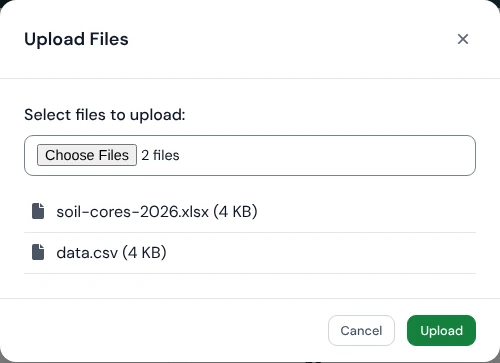
Click Upload.
You should see: an Upload Files window with a Choose Files button.
-
Click Choose Files and pick the file on your computer. Note its size there.
You should see: the file's name and size listed in the window, for example gauges-copy.csv (135 B).
-
Click Upload.
You should see: the window close, and an Uploads panel at the bottom right with the file's name and a progress bar.
-
Wait for the green tick in the Uploads panel.
You should see: the listing refresh by itself within about ten seconds, with a new card for the file.
-
Read the size on the new card.
You should see: the size the file has on your computer.
Check it worked
The file's card is in the folder, and its size matches the original. Inside a MESA app
the file is at ~/data-store/home/<your username>/ followed by the folder and file
name.
If it didn't
There is no Upload button. You are in a folder you cannot write to, such as Community, or you are signed out. Click My Files and look again.
The tick is green but there is no card. Wait a few seconds and reload the page.
The Uploads panel shows an error. Read its message, then try once more. If it fails again, tell us what the message says, without any private file name.
Next
- Download a file from your Data Store to your computer
- Load a file from your Data Store into a notebook
- Reference: Managing data, "Upload, create, move, and delete".
Not yet validated by a person. Drafted with AI assistance on 2026-11-16 and followed once on the live portal that day, with the file supplied by a script.
Machine-readable versions of this page: Markdown twin · raw source on GitHub · llms.txt · llms-full.txt (whole site). See For AI agents.