Managing data
The Data Browser (https://mesa.cyverse.org/data/) is the portal's window on the CyVerse Data Store1. Use it to browse your files and MESA's shared datasets, upload and organise files, share them with collaborators, and read or edit their metadata.
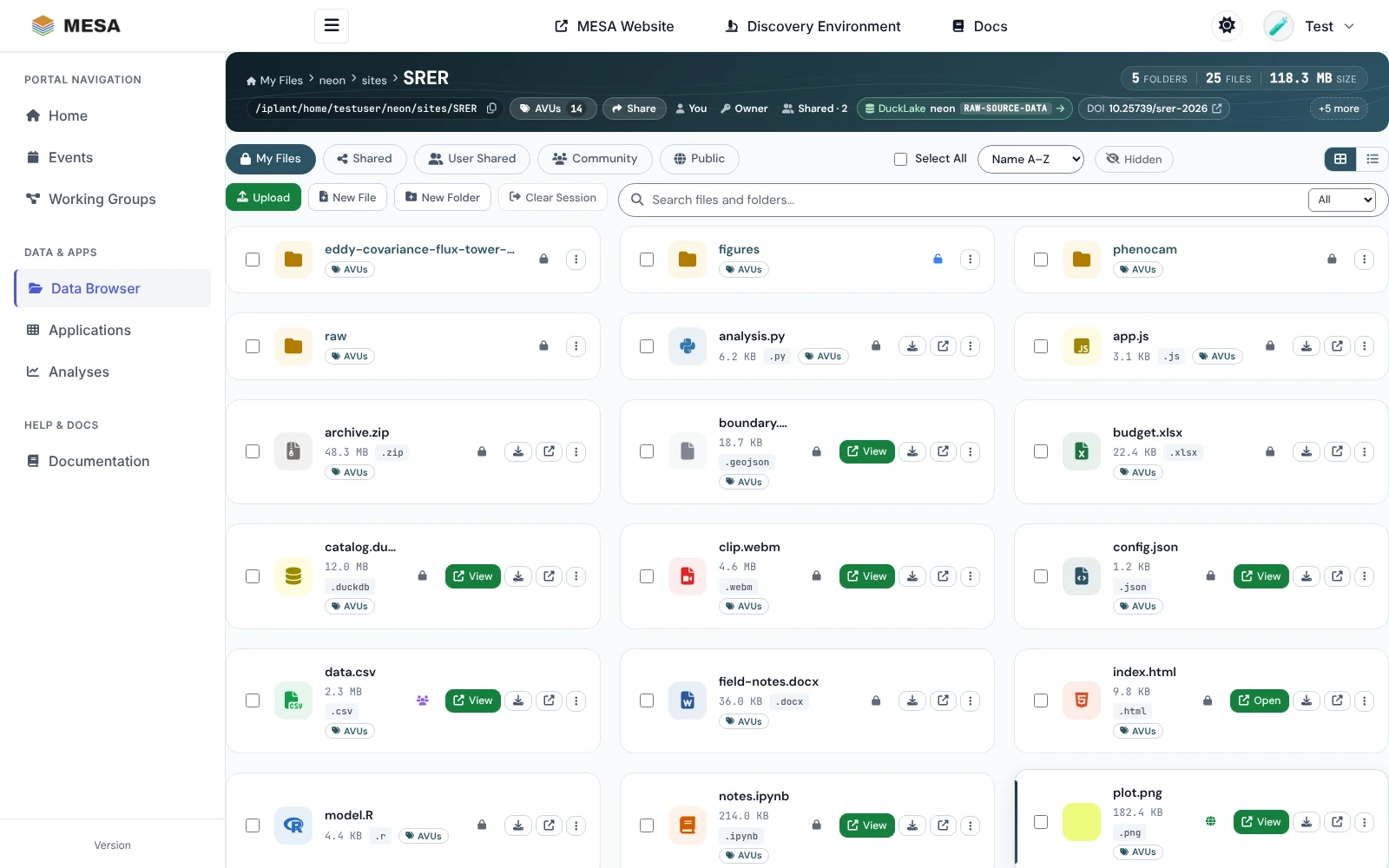
Open the Data Browser
Click Data Browser in the sidebar. Signed in, it opens your home folder
(/iplant/home/<your username>); signed out, it opens the MESA community data.
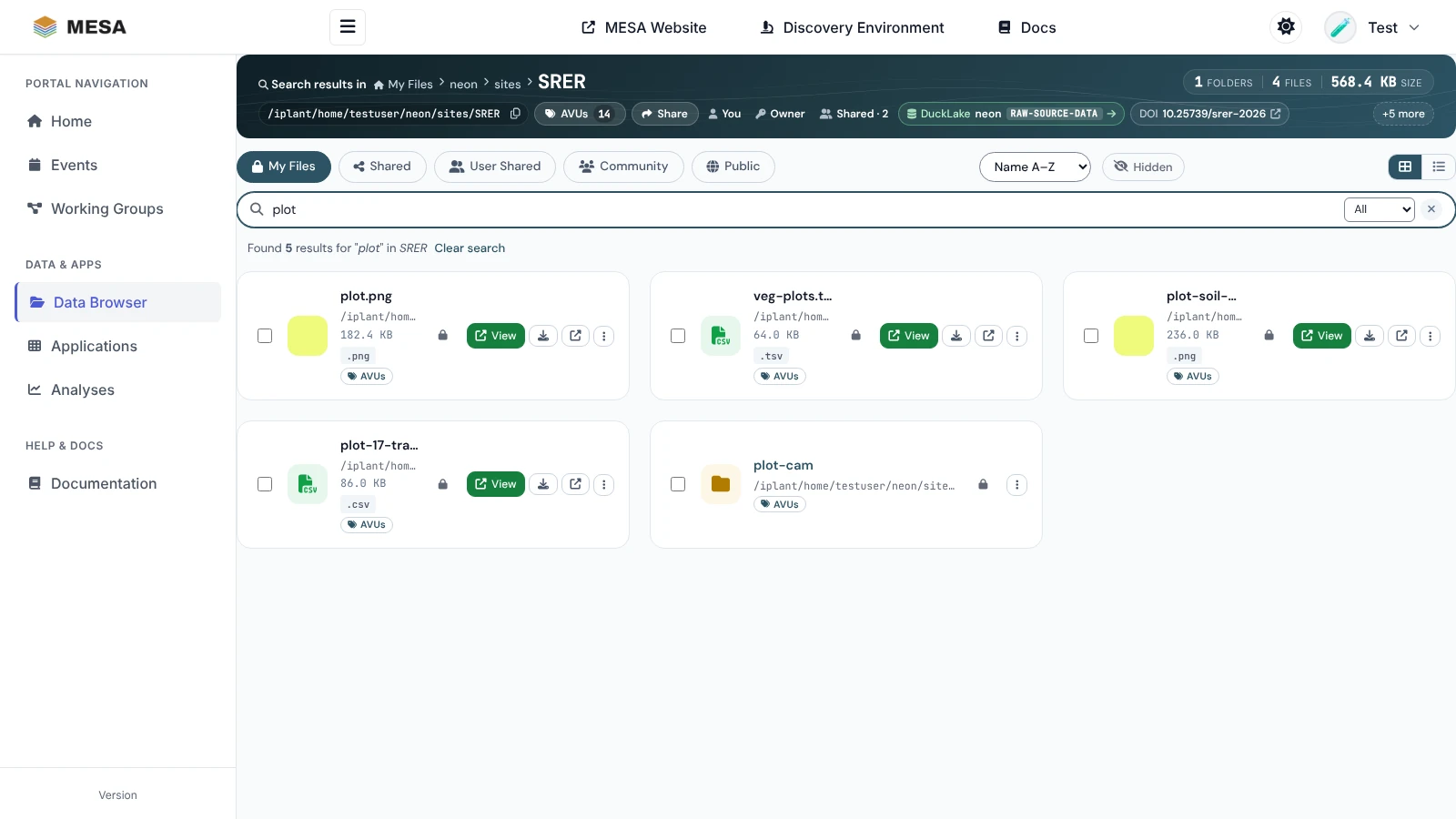
Choose where to look
The row of buttons under the header switches between five places:
| View | What it shows | Who sees it |
|---|---|---|
| My Files | Your Data Store home folder, /iplant/home/<username> |
Signed-in users |
| Shared | The CyVerse community project tree, /iplant/home/shared |
Signed-in users |
| User Shared | One folder per person who has shared something with you or with a group you belong to | Signed-in users |
| Community | The MESA community folder, /iplant/home/shared/mesa |
Everyone |
| Public | Public CyVerse data collections, read only | Everyone |
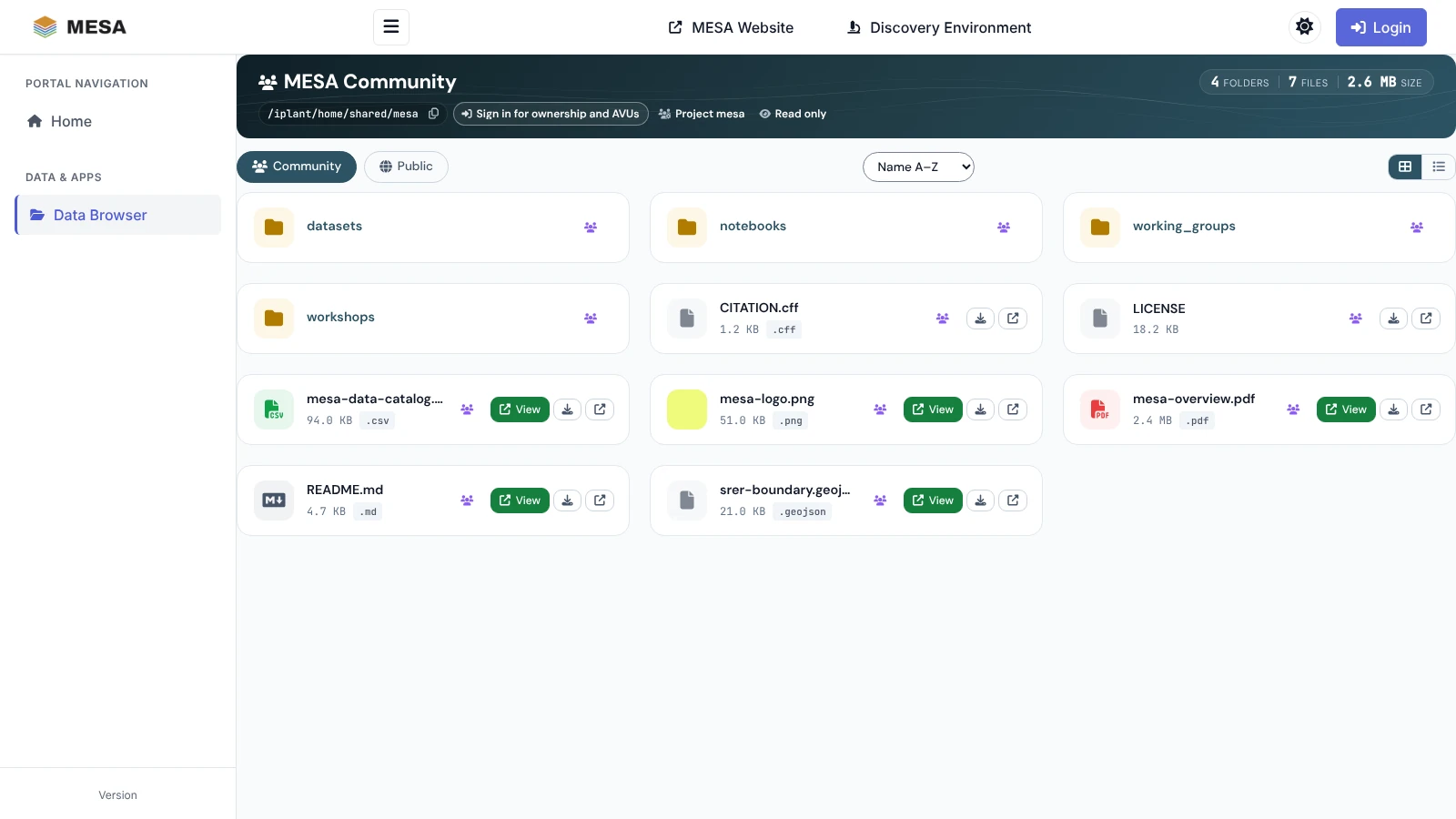
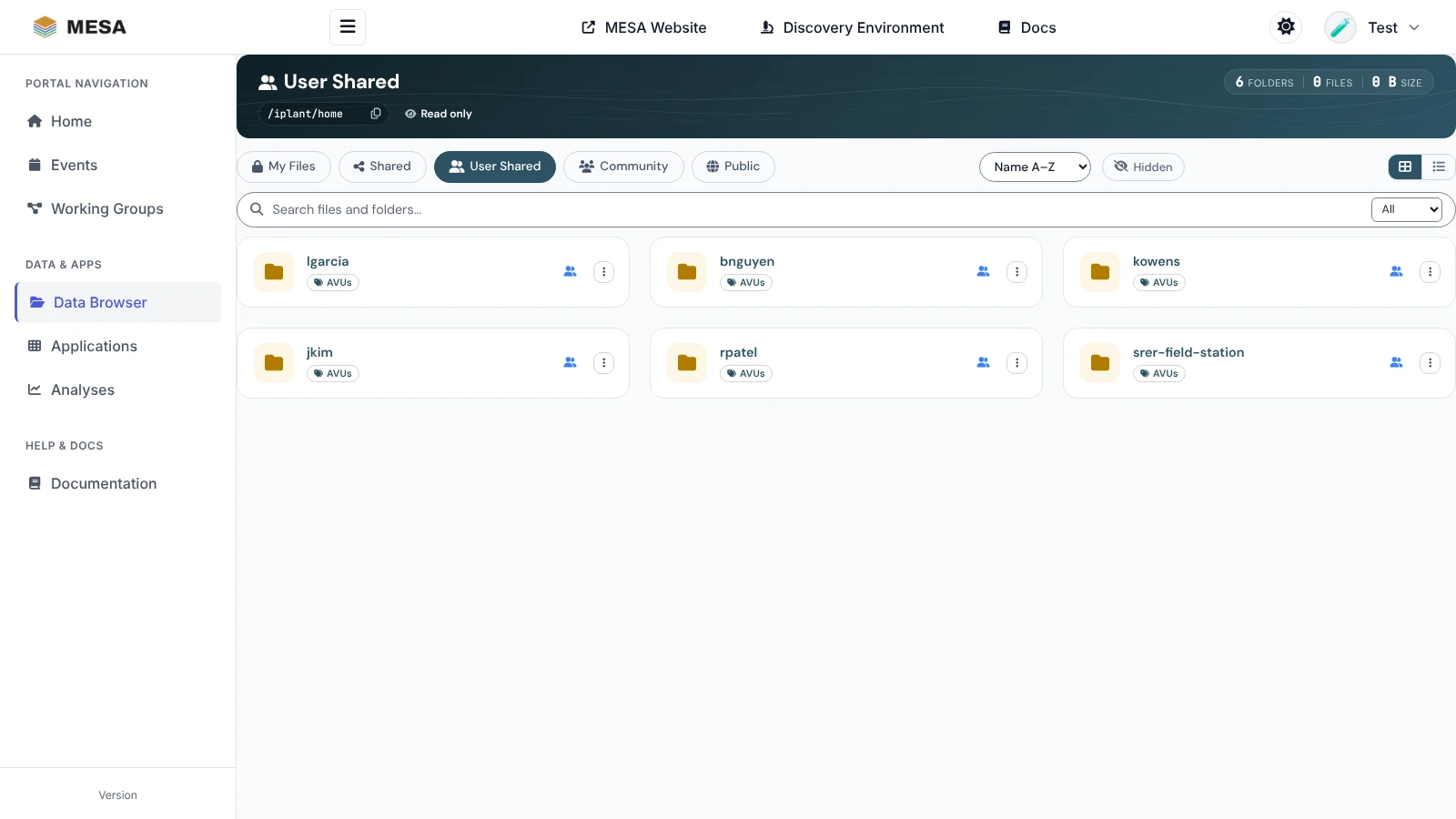
User Shared names people, not folders: open a person to see what they let you open. It is the same list as Shared With Me in the Discovery Environment. The list is refreshed every few minutes, so something shared a moment ago can take a little while to appear.
Read the folder header
The dark band at the top describes the folder you are in:
- Trail and name: the path from the view's starting folder. Click any part to jump back to it, or drag a file onto a part to move the file there.
- Counts: folders, files, and total size.
- Path: the full Data Store path, with a copy button. Paste it into iCommands, GoCommands, or an AI agent using the MESA MCP servers.
- AVUs: the folder's own metadata, with a count (see Metadata).
- Share: share the folder itself (shown when you own it).
- Ownership and access: whose folder it is, your permission (Owner, Can edit, or Read only), and how many others can open it (Shared · N or Private).
- Relationship chips, when they apply: DuckLake (the folder belongs to a MESA
DuckLake project), DOI (a DOI was minted for it or a parent), DataCite relations
such as Part of or Derived from, the Working group or Team it belongs to,
and Analysis output for folders under your
analysesfolder. +N more shows the rest.
Browse and find files
- Click a folder's name to open it. Each file card shows its size, type, and buttons: View (open it in the built-in viewer), download, and open in a new tab.
- Switch between cards and a list with the two buttons at the right.
- Sort with the Name A–Z menu (name or date, either way).
- Hidden shows dot-files; the portal may ask you to sign in again first.
- Large folders are split into pages; use Next, Previous, and Per page at the bottom.
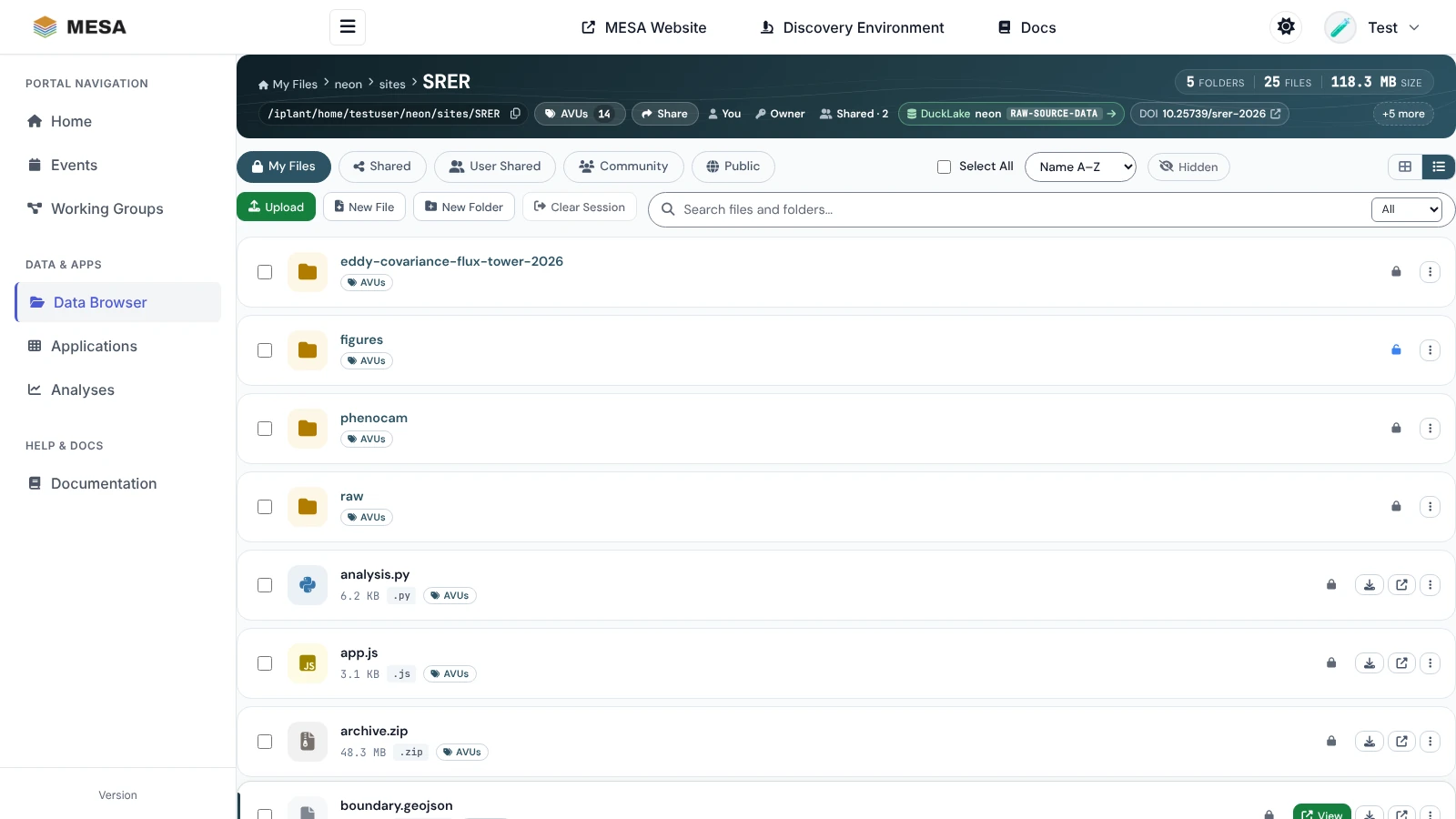
Search
Type in the Search files and folders box to find items by name in the folder you are in and the folders below it. The menu beside the box limits the results to Files or Folders. Each result shows its full path; Clear search (or ×) returns to the folder.
View files in the browser
View opens supported files without downloading them: Jupyter notebooks, R Markdown, Quarto, and Markdown documents; PDF, HTML, JSON, and YAML; images (JPEG, PNG, GIF, SVG, WebP, BMP); and more, such as GeoJSON, video, and DuckDB or Parquet tables. A folder of images can also be opened as a gallery. For anything else, download the file or open it in the Discovery Environment.
Upload, create, move, and delete
The action row (signed in, in folders you can write to) has Upload, New File, and New Folder.
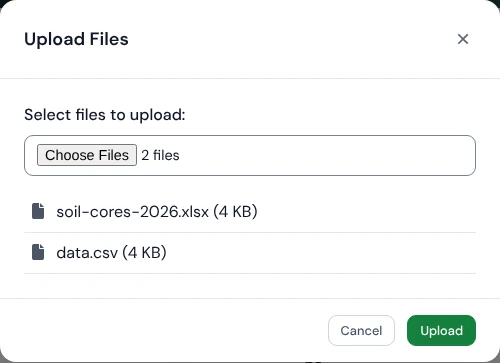
- Upload: click Upload and choose files, or drag files from your computer onto the listing. A progress panel tracks each upload.
- New Folder: type a name and click Create. Avoid spaces; use
-or_. - New File: start a new file from a template, for example a Python script or a Markdown note.
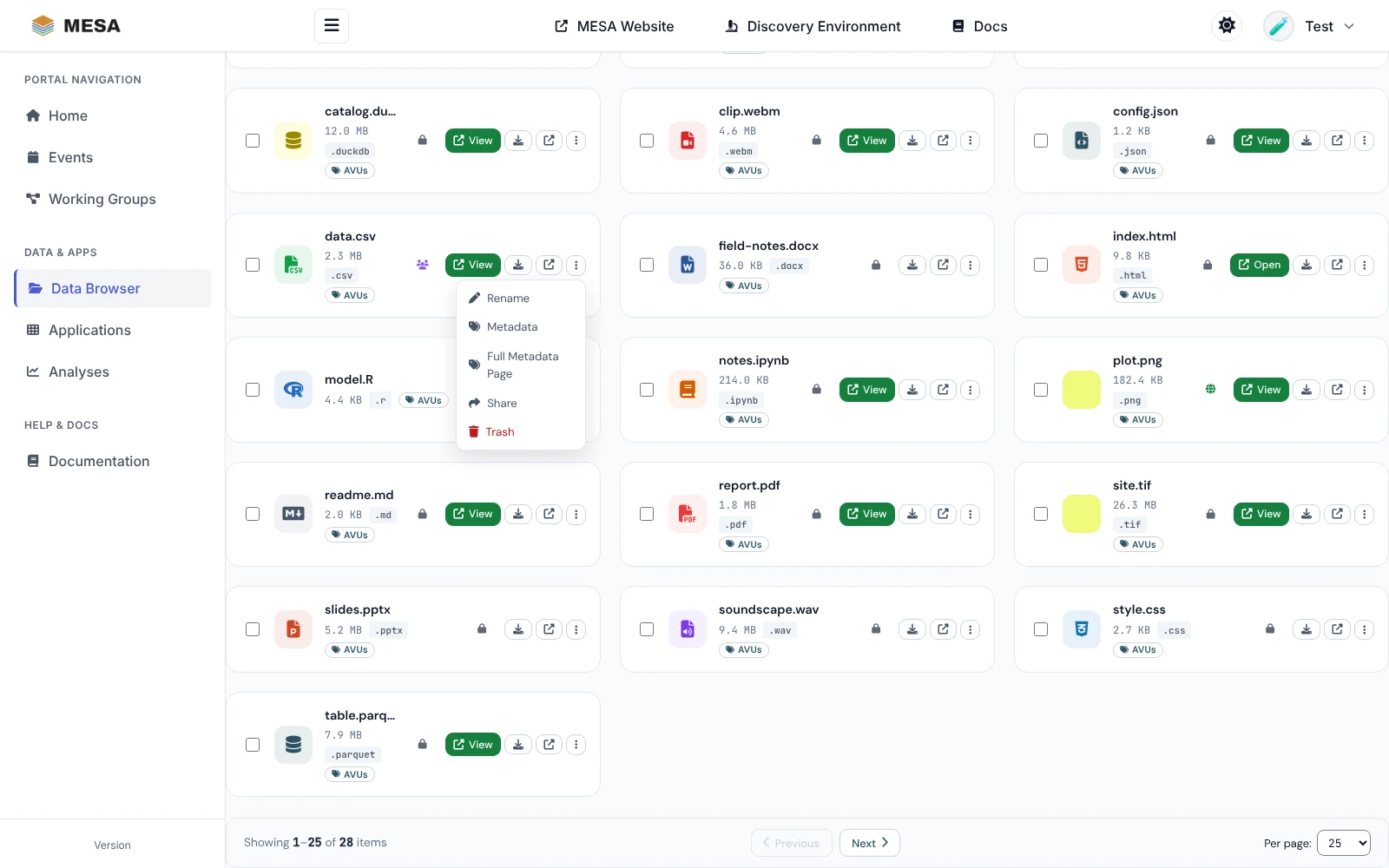
- Rename and Trash: in each card's ⋮ menu. Trash moves the item to your Data Store trash, from which the Discovery Environment can restore it.
- Move: drag a card onto a folder in the trail, or select several items and click Move.
Work on several items at once
Tick the box on each card (or Select All). A toolbar appears with Trash, Move, Share, and Clear.
Share data
- Open the share dialog: Share in the folder header for the folder you are in, or Share in an item's ⋮ menu, or Share in the toolbar for several selected items.
- Choose who gets access:
- All CyVerse Users (public): every signed-in CyVerse user can read it.
- Anyone without login (anonymous): anyone on the internet can read it.
- Share with User: type a complete CyVerse username or email address, pick Read, Write, or Own, and click Share.
- Current Permissions lists everyone who has access. Change a level or click Remove to take access away.
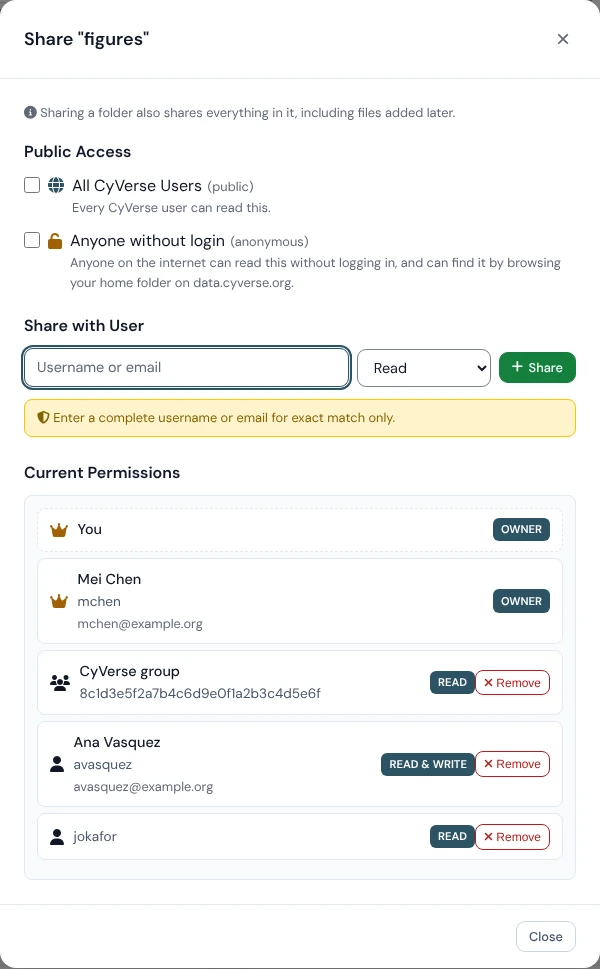
Sharing a folder shares everything in it, including files added later. The people you share with find it under User Shared.
Describe data with metadata (AVUs)
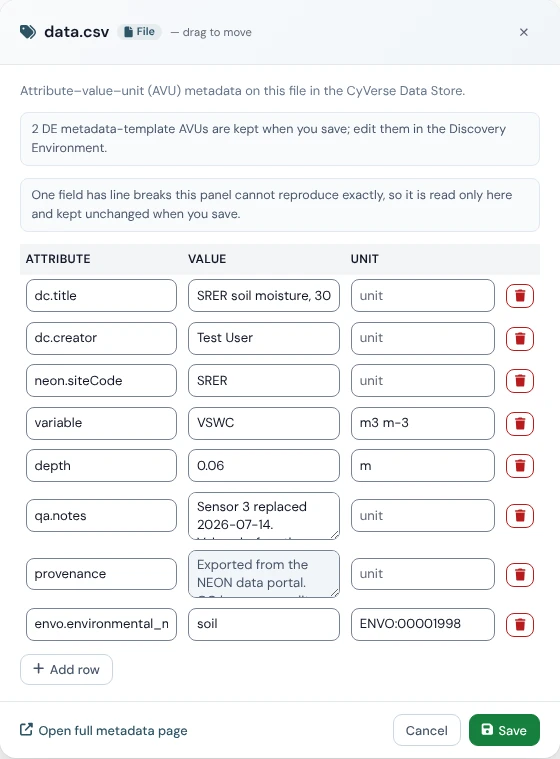
Data Store metadata is stored as AVUs, attribute–value–unit triples: for example the
attribute depth, the value 0.06, and the unit m.
- Click the small AVUs button under a file or folder's name (or AVUs in the folder header for the current folder).
- The panel lists the item's AVUs. If you own the item or can write to it, edit any field in place, Add row for a new AVU, or use the bin icon to remove one.
- Click Save.
Good to know:
- Every AVU needs an attribute and a value; the unit is optional.
- Attribute names starting with
ipcare reserved by CyVerse. - AVUs from Discovery Environment metadata templates are kept but not shown; edit those in the DE.
- Open full metadata page (at the bottom of the panel) shows the schema views (DataCite, Dublin Core, EML, Local Contexts, ontology terms) and DOI information.
- AVUs are what the mesa-mcp server reads and writes, so an AI agent can find and curate the same metadata.
Data in the apps
Interactive apps you start from the portal see your Data Store under ~/data-store, and
batch analyses write their results under /iplant/home/<username>/analyses/ unless you
choose another folder. Open Analysis output folders here, or use View Results on
the Analyses page.
Troubleshooting
| Problem | What to do |
|---|---|
| My Files asks for a password | Your CyVerse single sign-on token is missing or expired. Sign out and sign in again with Sign in with CyVerse. If you are asked for a WebDAV password, set one in CyVerse user settings; Clear Session forgets it. |
| Upload, share, or AVU buttons are missing | You are signed out, or you only have Read only access to the folder (see the folder header). |
| A new file does not appear | Wait a few seconds and refresh the page. |
| "Permission denied" | Ask the owner to share the item with you, with Write if you need to change it. |
| "Some details unavailable" in the header | Part of the folder information did not load. Click Retry. |
| The Data Store does not answer | Check https://status.cyverse.org for an outage. |
-
MESA Portal Data Browser, https://mesa.cyverse.org/data/; MESA Portal Data Browser user guide, https://mesa.cyverse.org/docs/. ↩
Machine-readable versions of this page: Markdown twin · raw source on GitHub · llms.txt · llms-full.txt (whole site). See For AI agents.