Starting applications
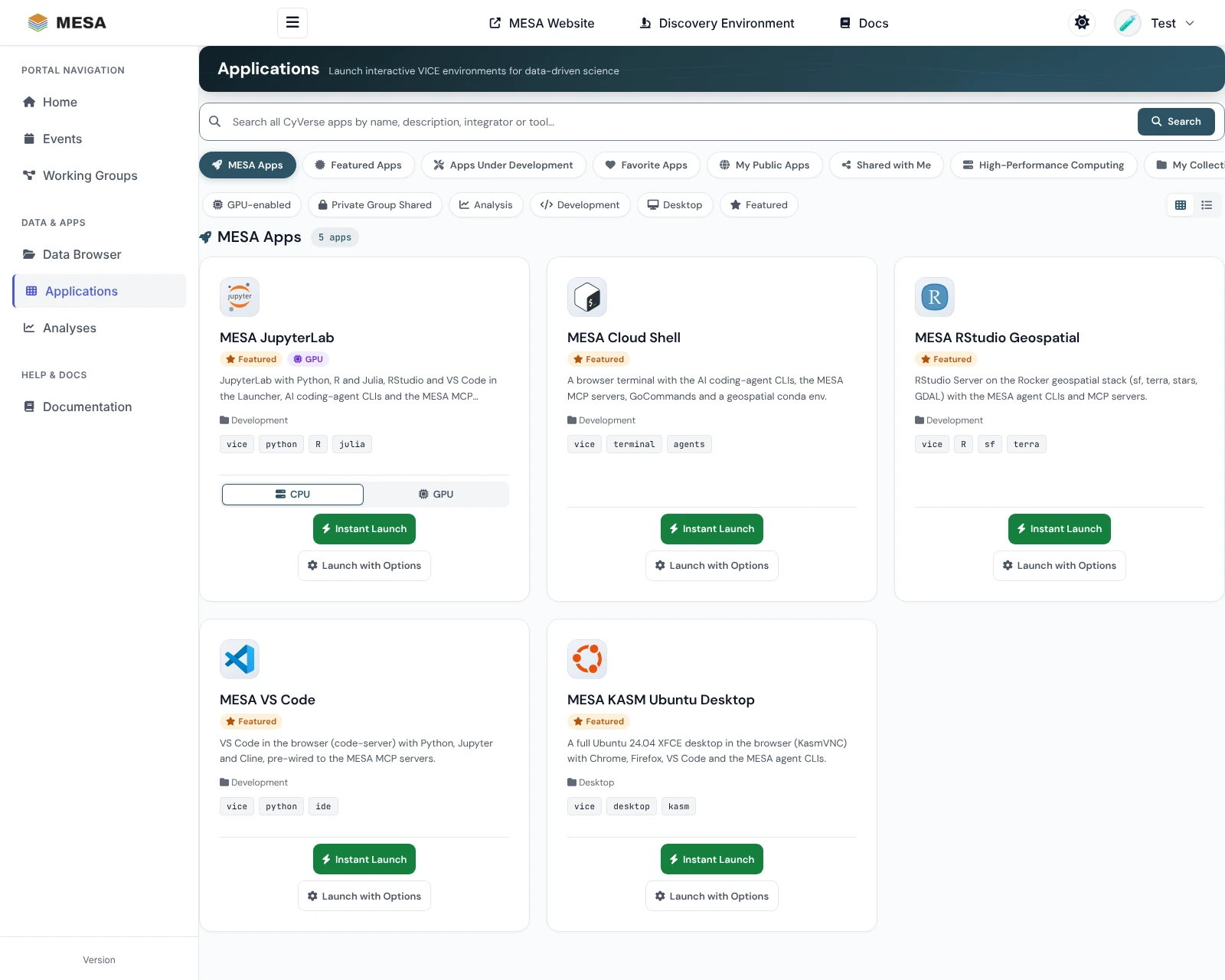
The Applications page (https://mesa.cyverse.org/applications/) is a catalog of everything you can run on CyVerse: the MESA featured apps and the whole Discovery Environment (DE) catalog1. Interactive apps (VICE apps such as JupyterLab, RStudio, VS Code, a terminal, or a Linux desktop) start from the portal and open in a new browser tab; batch apps open in the Discovery Environment.
Quick start
- Click Applications in the sidebar. The MESA Apps tab opens.
- On the app you want, click Instant Launch.
- A new tab shows the launch progress and opens the app when it is ready, usually within one to three minutes.
- Later, return to the app from the Analyses page with Open App.
You must be signed in to launch. Signed out, the cards show Sign in to launch.
Find an app
Sections
The tabs above the catalog mirror the sections of the DE apps page:
| Tab | What it shows | Sign-in needed |
|---|---|---|
| MESA Apps | The apps curated for MESA: the featured apps and any group apps you have access to | No (group apps: yes) |
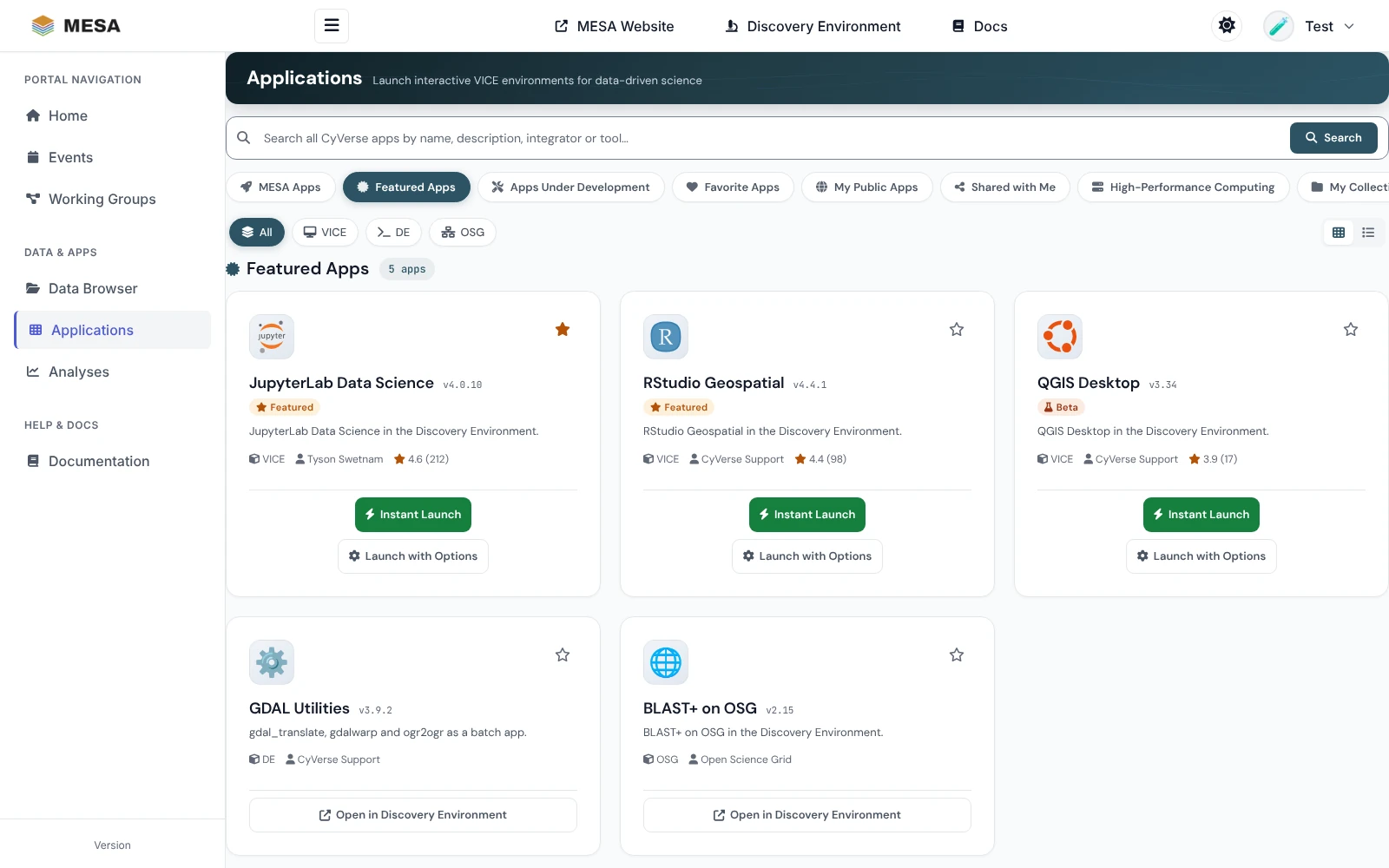
| Featured Apps | CyVerse's own featured apps | No |
| Apps Under Development | Apps you created in the DE and have not published | Yes |
| Favorite Apps | Apps you starred | Yes |
| My Public Apps | Apps you published | Yes |
| Shared with Me | Apps other CyVerse users shared with you | Yes |
| High-Performance Computing | HPC apps that run on Tapis systems (needs a one-time Tapis authorization) | Yes |
| My Collections | App collections of the CyVerse communities you belong to | Yes |
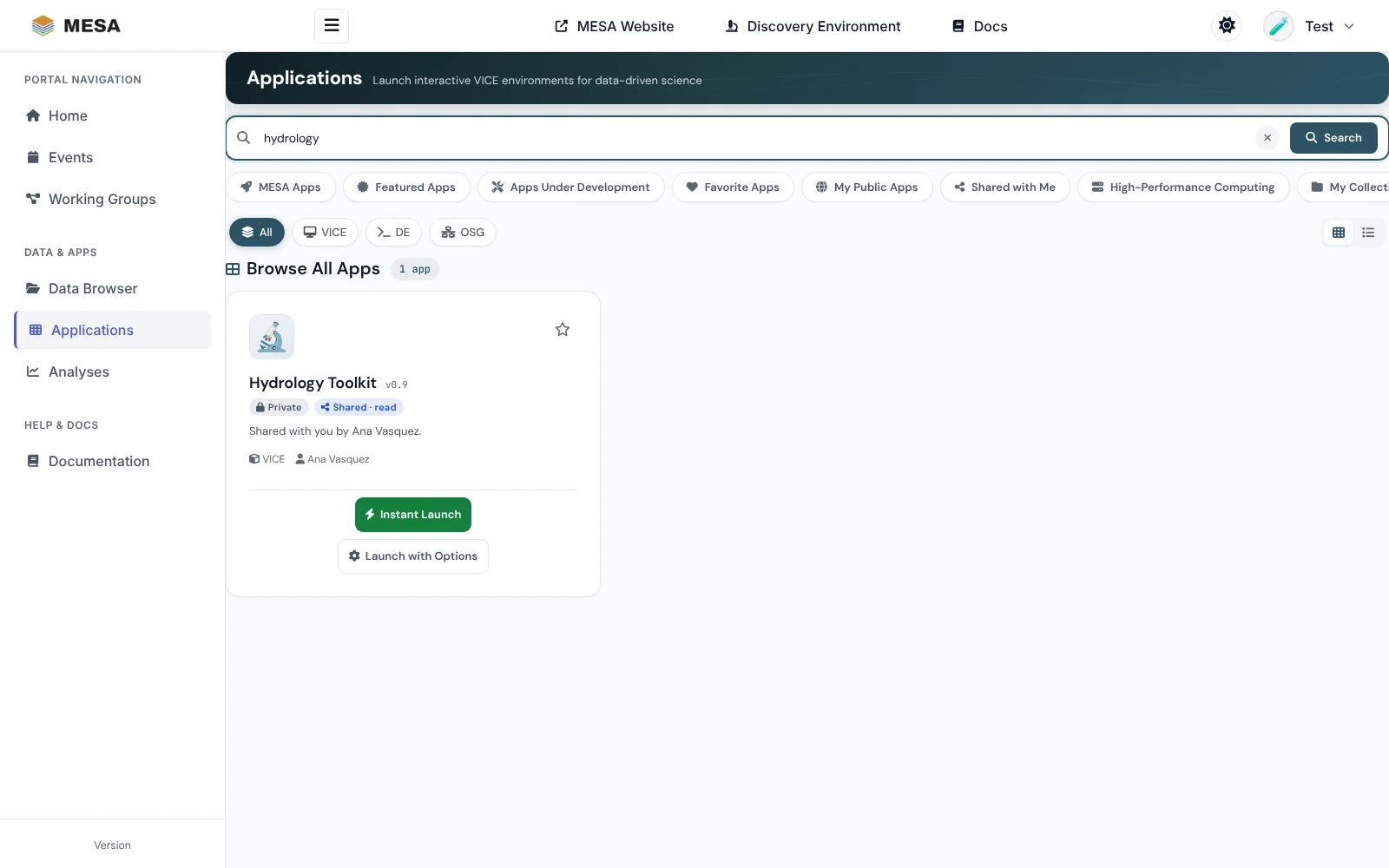
| Browse All Apps | The complete CyVerse catalog; search results appear here | No |
The address bar follows the tab, so you can bookmark a section: for example
https://mesa.cyverse.org/applications/?section=featured.
Filters
- On MESA Apps, the chips filter by GPU-enabled, Private Group Shared, Analysis, Development, Desktop, and Featured. Chips combine.
- On the CyVerse sections, All / VICE / DE / OSG filters by how an app runs: VICE apps are interactive and start in the portal, DE apps are batch jobs, and OSG apps run on the Open Science Grid.
- Switch between cards and a list with the buttons at the right.
Search
Type in the search box and press Enter. The search covers the whole CyVerse catalog (app name, description, integrator, and the tool the app wraps) and shows the results on Browse All Apps. The type filter narrows the results. Click × to clear.
Favorites
On the CyVerse sections, click the ☆ on a card to star the app; click again to remove it. Stars are saved to your CyVerse account, so the DE shows the same favorites. Find them under Favorite Apps.
Launch an app
What a card offers depends on the kind of app:
| App | Buttons | Where it runs |
|---|---|---|
| Interactive (VICE), including every MESA app | Instant Launch, Launch with Options | Starts from the portal, opens in a new tab |
| Batch (DE) and OSG | Open in Discovery Environment | The DE, in a new tab |
| HPC | Open in Discovery Environment, Docs | The DE |
Instant Launch
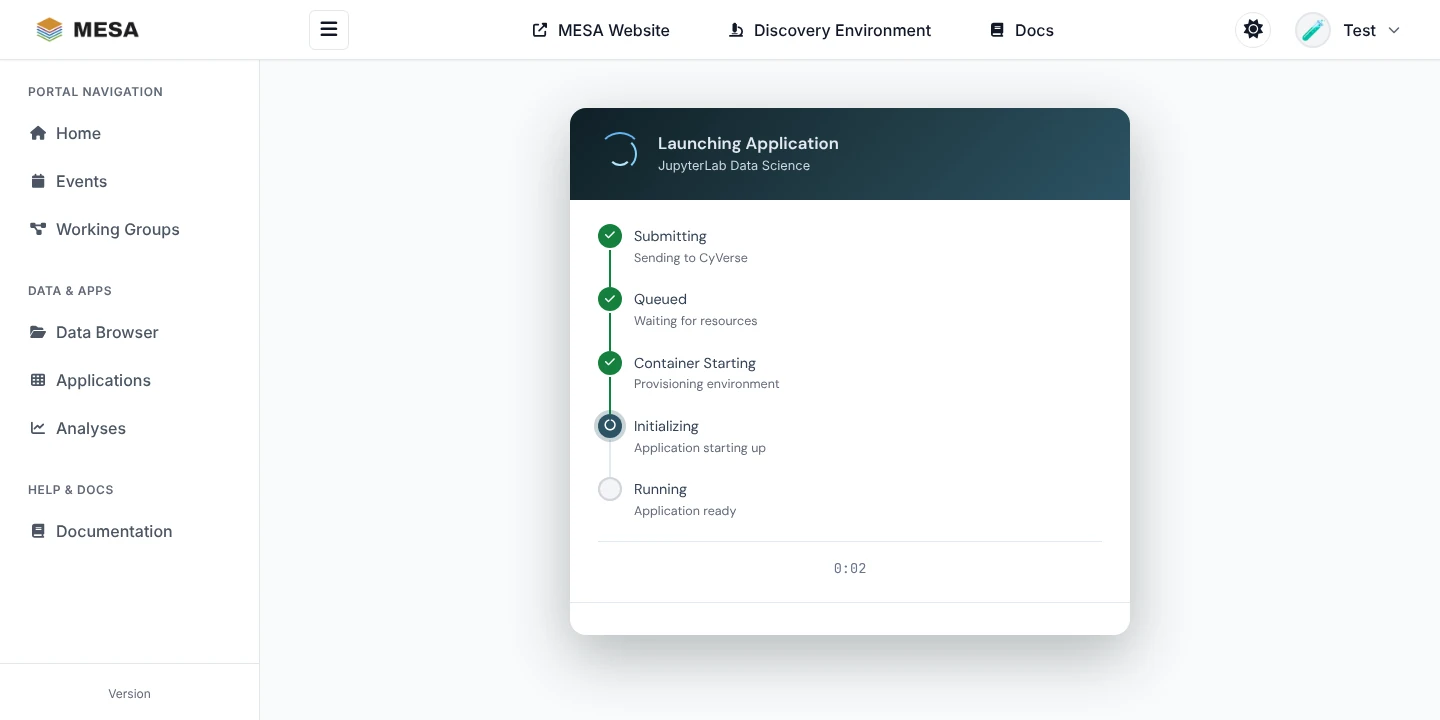
Instant Launch starts the app with its default settings. A launch page opens in a new tab and steps through Submitting, Queued, Container Starting, Initializing, and Running; then it switches to the app.
Launch with Options
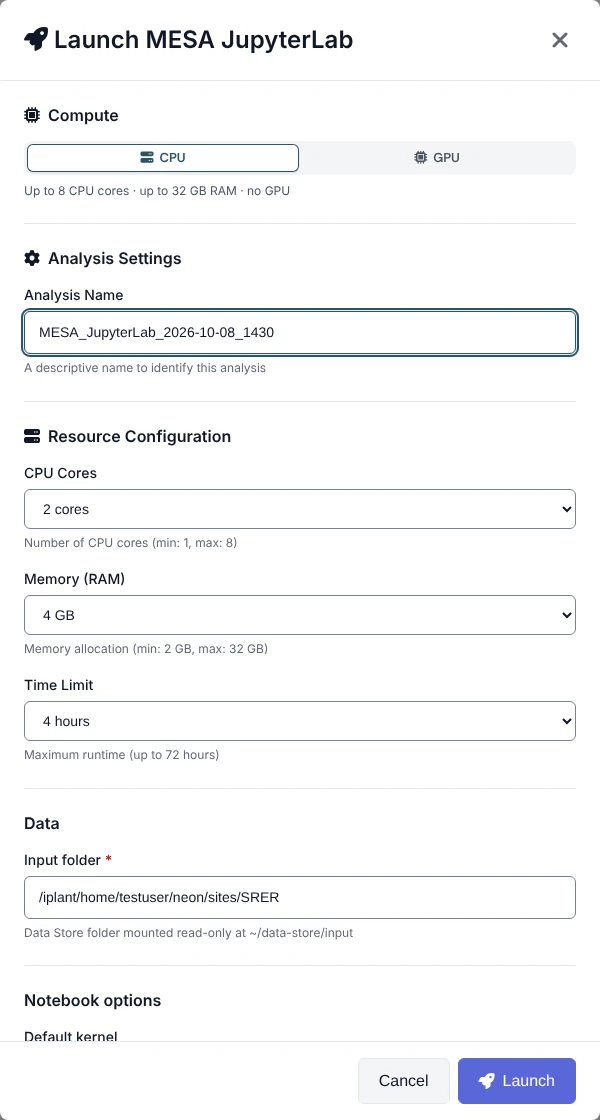
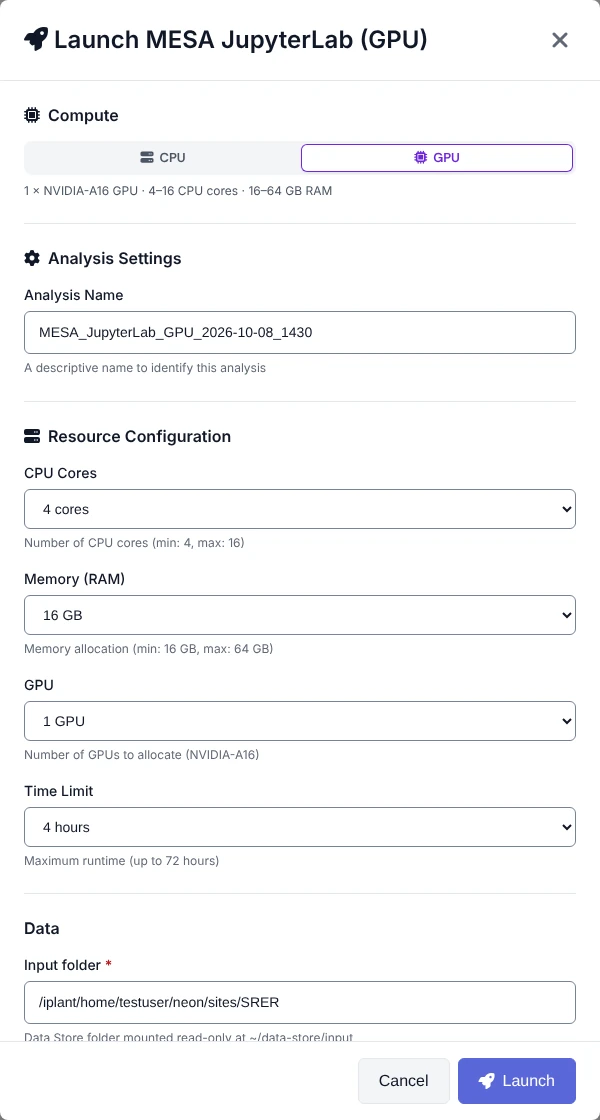
Launch with Options opens a dialog where you choose:
- Compute: CPU or GPU, for apps that have a GPU build (see below).
- Analysis Name: a name that helps you find the analysis later.
- Resource Configuration: CPU cores, memory, the number of GPUs (GPU builds), and the time limit, within the app's limits.
- The app's own parameters, filled in with its defaults.
Click Launch. The same launch page opens as for Instant Launch.
Choosing Data Store input files with a file picker is only available in the Discovery
Environment: use Open in Discovery Environment for apps that need inputs selected up
front. Interactive apps launched from the portal see your whole Data Store under
~/data-store anyway.
CPU or GPU
Some MESA apps come in two builds, a standard one and a GPU one (the same image with the
:gpu tag, published in CyVerse as "App name (GPU)"). The portal shows them as one
card with a CPU | GPU switch above the launch buttons. Pick GPU and the card's
buttons start the GPU build. The analysis is named after the build you launched, for
example MESA JupyterLab (GPU), so you can tell them apart on the Analyses page. GPU
builds run on NVIDIA A16 nodes; see each featured app for what its GPU
build adds.
High-Performance Computing apps
The High-Performance Computing tab needs a one-time link to Tapis:
- Open the tab. If you have not linked Tapis, it shows Connect your Tapis account.
- Click Authorize with Tapis, sign in, and approve in the new tab.
- Return to the portal and click Try again.
Troubleshooting
| Problem | What to do |
|---|---|
| Sign in to launch on every card | Sign in. If you were signed in, your CyVerse session expired: sign in again. |
| "Sign in to see …" on a tab | That section is personal; click Sign in with CyVerse and you return to it. |
| "Showing public apps; sign in again to see your own" | Your CyVerse session expired. Sign in again. |
| "CyVerse is busy" or "Couldn't load …" | CyVerse did not answer. Wait a minute and click Try again. |
| "Too many requests" | The catalog limits requests per minute. Wait a minute; signing in gives you your own allowance. |
| An app is not in the list | Check the tab (Browse All Apps is the full catalog), clear the type filter and the search box, or search by name. |
| The app does not open | Wait until the launch page shows Running, allow pop-ups for mesa.cyverse.org, then use Open App on the Analyses page. |
| The launch fails | Check your CPU-hour quota on the dashboard, and try smaller resources with Launch with Options. |
-
MESA Portal Applications catalog, https://mesa.cyverse.org/applications/; MESA Portal Applications user guide, https://mesa.cyverse.org/docs/. ↩
Machine-readable versions of this page: Markdown twin · raw source on GitHub · llms.txt · llms-full.txt (whole site). See For AI agents.