Launch an app with the cores, memory, and time you choose
Draft: not yet validated
These steps were followed once on the live portal on 2026-11-13, by the AI assistant that drafted them. No person has yet followed them, so a screen may differ. Tell us what you find.
Instant Launch starts an app with default settings. Launch with Options lets you give it more memory for a large dataset, less time for a short task, and a name you will recognise later.
You will: have MESA JupyterLab running with the resources and the name you chose.
Time: 5 to 10 minutes. You need: to be signed in to the MESA Portal.
Steps
-
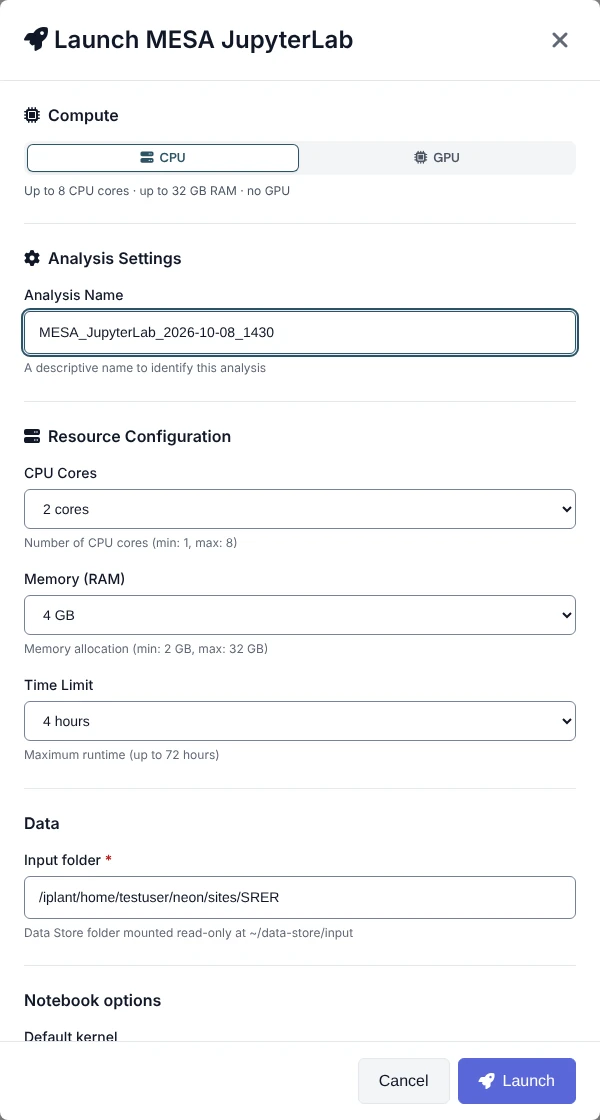
In the sidebar, click Applications. On the MESA JupyterLab card, click Launch with Options.
You should see: a Launch MESA JupyterLab window with Analysis Settings and Resource Configuration.
-
Replace the Analysis Name with one that says what the session is for, such as
practice-session.You should see: your name in the box, in place of the app's name and the date.
-
Choose CPU Cores. The menu offers 1, 2, or 4.
You should see: your choice. For reading and checking small files, 1 is enough.
-
Choose Memory (RAM): 2, 4, 8, or 16 GB.
You should see: your choice. As a rule of thumb, allow several times the size of the largest file you will load.
-
Choose a Time Limit, from 1 hour to 48 hours.
You should see: your choice. The app stops when the limit is reached, whether or not you have finished, so allow some margin.
-
Click Launch.
You should see: the same launch progress as for Instant Launch, ending with JupyterLab.
-
In the portal, click Analyses.
You should see: a card under Running Analyses with the name you gave.
Check it worked
On the running card, Time Remaining is just under the limit you chose: about
59m for a one-hour limit.
If it didn't
The launch fails, or the analysis never leaves Pending. The resources you asked for are not available, or your CPU-hour quota is used up. Check Resource Usage on Home, then launch again with fewer cores or less memory.
Next
- Check on a running app and give it more time
- Stop an app and find your results. A running app uses your CPU hours until it stops.
- Reference: Starting applications, "Launch with Options", which also covers GPU builds.
Not yet validated by a person. Drafted with AI assistance on 2026-11-13 and followed once on the live portal that day.
Machine-readable versions of this page: Markdown twin · raw source on GitHub · llms.txt · llms-full.txt (whole site). See For AI agents.