Stop an app and find your results
Draft: not yet validated
These steps were followed on the live portal on 2026-11-13, on a newly created account, by the AI assistant that drafted them. View Results was clicked on an earlier run, not this one. No person has yet followed them, so a screen may differ. Tell us what you find.
Every app you run is listed in the portal as an analysis. A running app counts against your CPU-hour quota until it stops, so stop the ones you have finished with.
You will: have stopped a running app cleanly and found the work you saved.
Time: 5 minutes. You need: a running app, such as MESA JupyterLab, with the work you want to keep already saved in your Data Store.
Steps
-
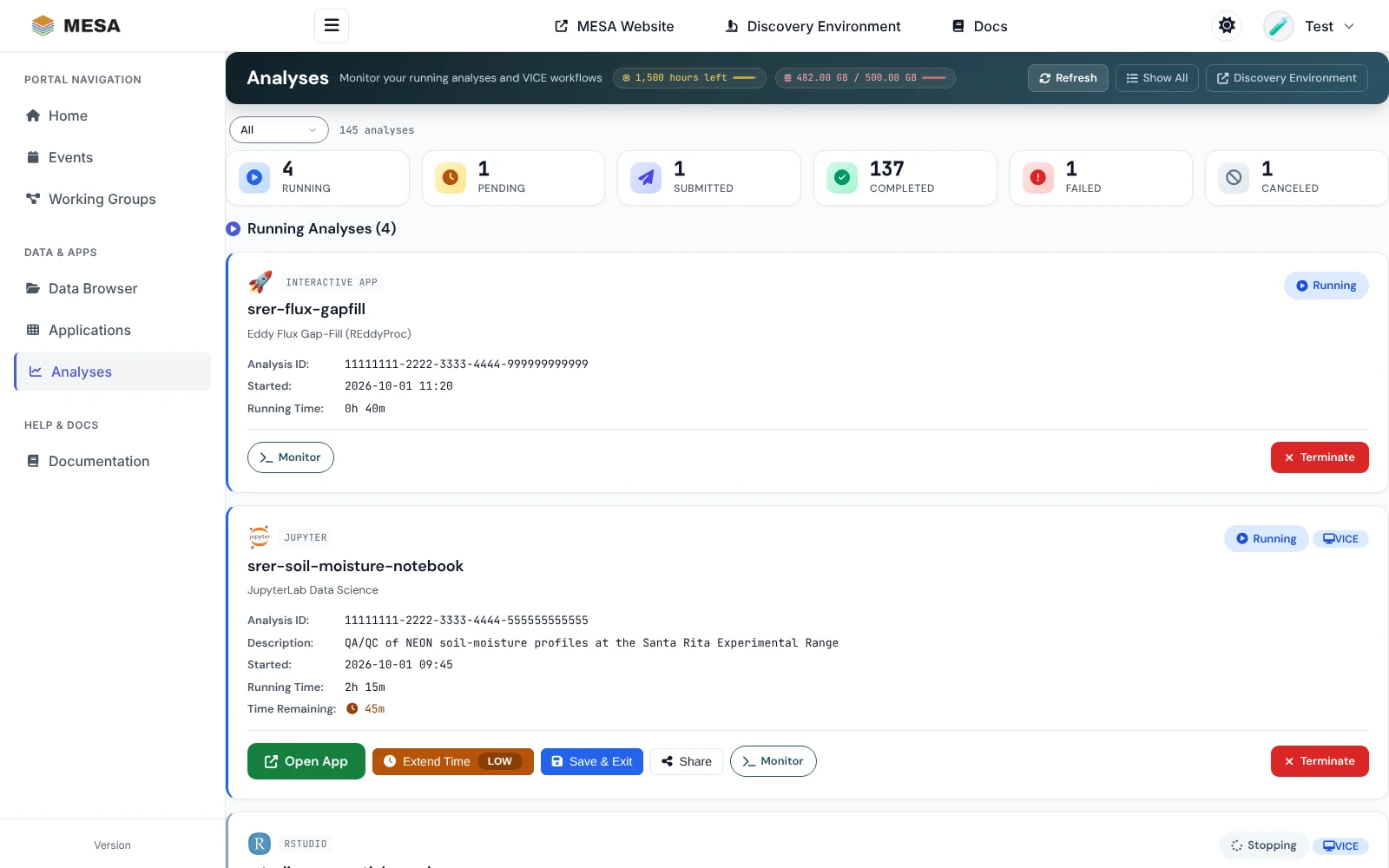
In the portal's sidebar, click Analyses.
You should see: your app under Running, on a card with a VICE badge and the time it has left.
-
On that card, click Save & Exit, and click OK when the browser asks you to confirm.
You should see: the card's badge change to Stopping, its buttons disappear, and the message Saving outputs and exiting…. This takes up to a minute, and you do not need to click again.
-
Wait for the page to update, then click the Completed Analyses heading to open that section.
You should see: your analysis first in the list, with a Completed badge and an Output path.
-
On the completed analysis, click View Results.
You should see: the Data Browser, open on the analysis's output folder. For an interactive app such as JupyterLab this folder is empty, and the portal may say Unable to Load Files and offer a password box. Leave the box empty: nothing is wrong, and your work is not kept here.
-
Read the path under the folder's name in the header.
You should see: a path under your
analysesfolder, unless you chose another output folder when you launched:/iplant/home/<your username>/analyses/<app name and start time> -
Click My Files and open the folder where you saved your own work.
You should see: the notebooks and files you saved in your home folder under
~/data-storewhile the app was running. This is where an interactive app's work lives.
Check it worked
The analysis is listed under Completed, and the files you saved are in My Files.
If it didn't
The analysis is under Canceled, not Completed. You clicked Terminate, which ends
the app at once without saving its outputs. Work you had saved under ~/data-store is
still in My Files; anything else from that session is gone. Click Relaunch to
start the app again with the same settings.
Next
- Launch MESA JupyterLab with your Data Store mounted, to start again
- Reference: Managing analyses, "Stop an app" and "Find the results", which also cover Extend Time, Monitor, and failed analyses.
Not yet validated by a person. Drafted with AI assistance on 2026-11-11 from the MESA documentation and followed once on the live portal on 2026-11-13.
Machine-readable versions of this page: Markdown twin · raw source on GitHub · llms.txt · llms-full.txt (whole site). See For AI agents.