Sign in to the MESA Portal with a CyVerse account
Draft: not yet validated
This tutorial was written from the MESA documentation. Nobody has yet followed it from start to finish on the live portal, so a screen name or a step may differ. Tell us what you find.
You will: be signed in to the MESA Portal, looking at your own dashboard.
Time: 5 minutes. You need: a web browser and a CyVerse account. If you do not have one, register free at https://user.cyverse.org before you start.
Steps
-
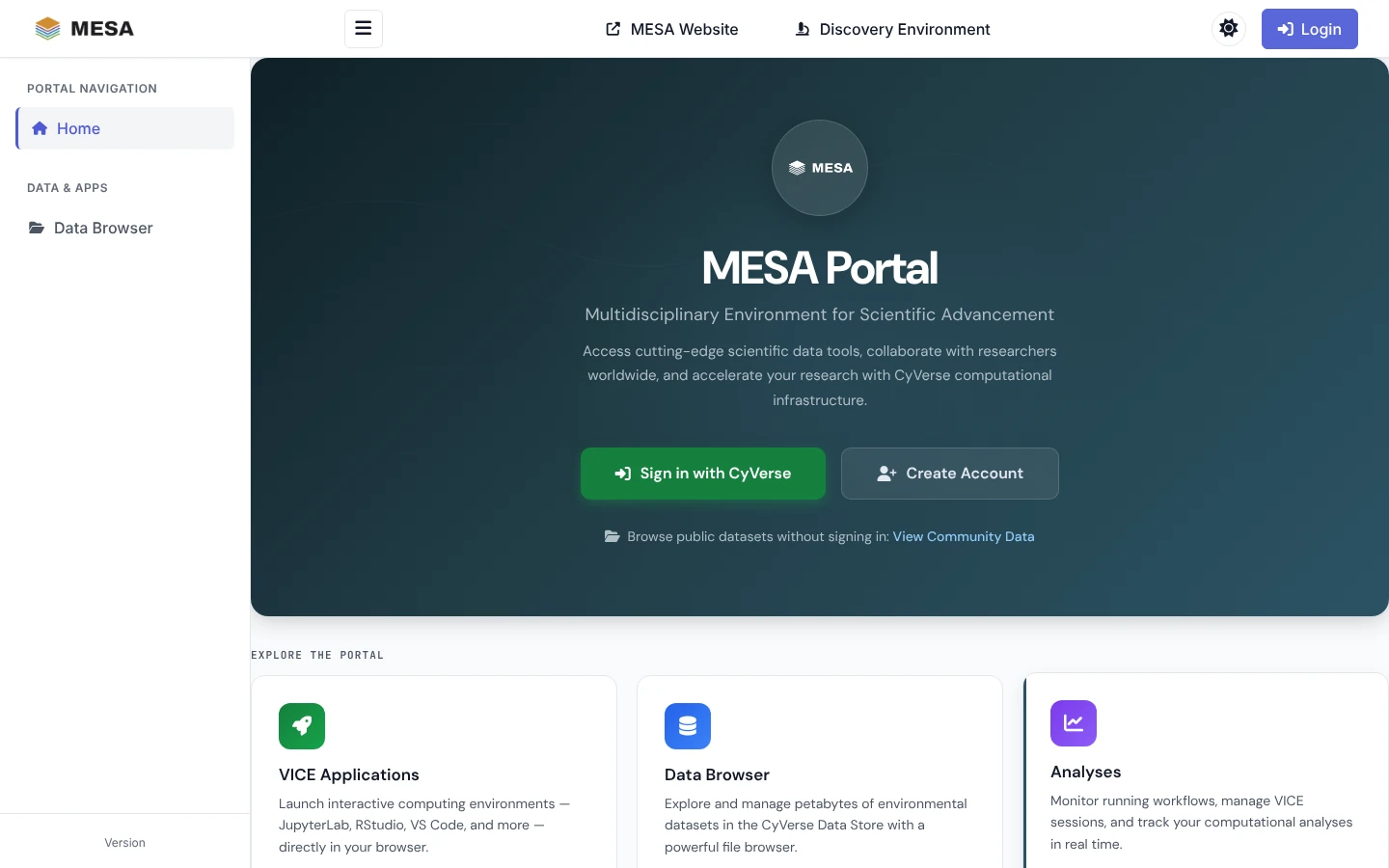
Open https://mesa.cyverse.org.
You should see: the portal's landing page, with a Sign in with CyVerse button and a Create Account button.
-
Click Sign in with CyVerse. Login in the top bar does the same thing.
You should see: the CyVerse sign-in page, which asks for a username and a password.
-
Enter your own CyVerse username and password and submit the form. Type them only on the CyVerse sign-in page, never into a notebook, a file, or a chat.
You should see: the portal again, now on Home, your dashboard.
-
Look at the sidebar on the left.
You should see: under Data & Apps, the pages Data Browser, Applications, and Analyses.
Check it worked
Home shows four panels: Recent Analyses, Resource Usage, My Working Groups, and Quick Actions. A visitor who is not signed in never sees these.
If it didn't
The sidebar lists only Home and Data Browser. You are still signed out. The portal lets visitors look at public data without an account, so it can seem to work. Click Login in the top bar and repeat steps 2 and 3.
Next
- Find your way around the MESA Portal
- Find MESA's community data in the Data Browser
- Launch MESA JupyterLab with your Data Store mounted
- Reference: MESA Portal overview, "Sign in", which also lists what works without signing in.
Not yet validated on the live portal. Drafted with AI assistance on 2026-11-11 from the MESA documentation.
Machine-readable versions of this page: Markdown twin · raw source on GitHub · llms.txt · llms-full.txt (whole site). See For AI agents.