Launch MESA JupyterLab with your Data Store mounted
Draft: not yet validated
These steps were followed on the live portal on 2026-11-13, on a newly created account, by the AI assistant that drafted them. No person has yet followed them, so a screen may differ. Tell us what you find.
You will: have JupyterLab running in a browser tab, with your CyVerse Data Store files available inside it.
Time: 5 to 10 minutes, most of it waiting for the app to start. You need: to be signed in to the MESA Portal.
Steps
-
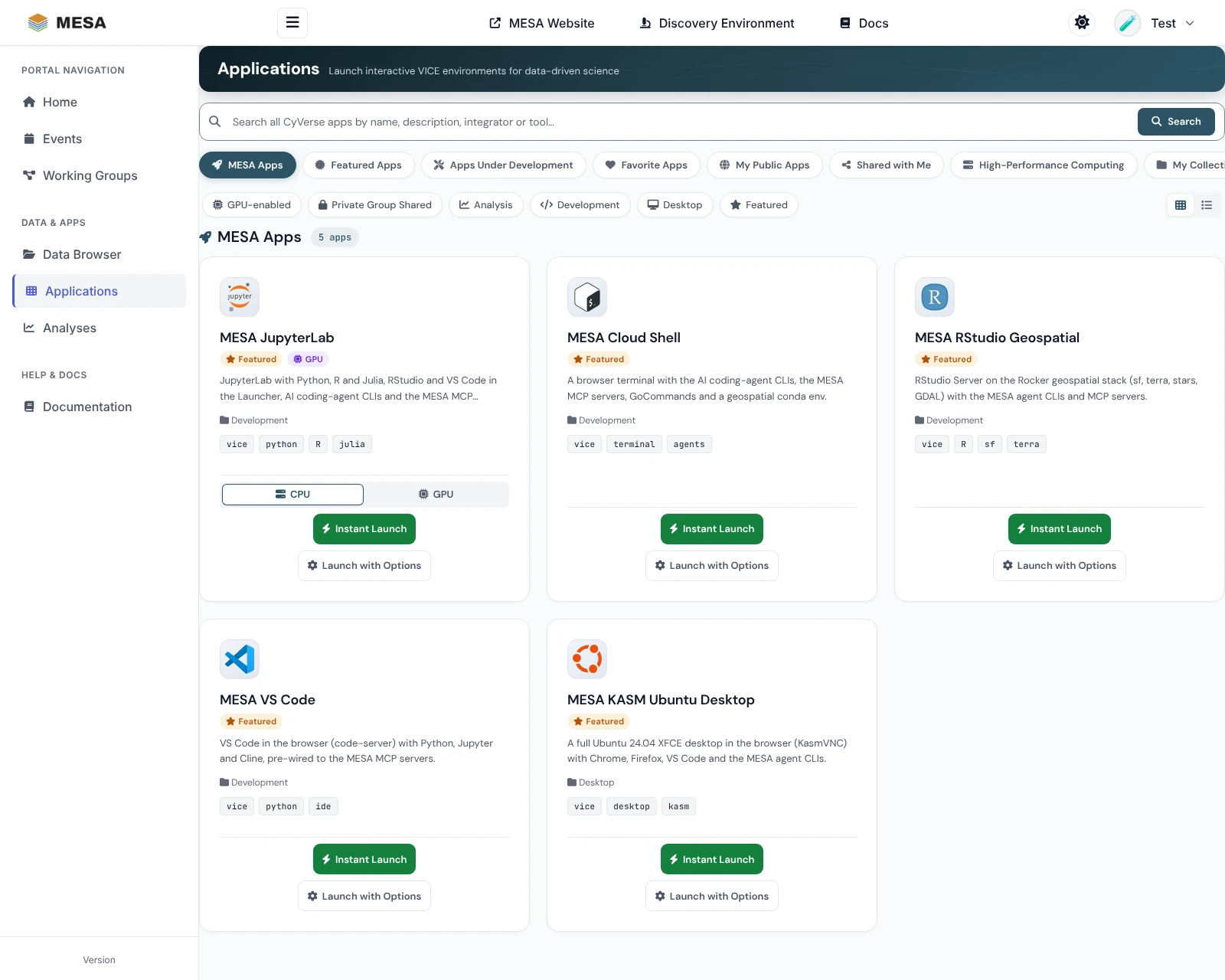
In the portal's sidebar, click Applications.
You should see: the MESA Apps tab, with a card for each MESA app. One of them is MESA JupyterLab.
-
On the MESA JupyterLab card, click Instant Launch.
You should see: a new browser tab with a launch page that steps through Submitting, Queued, Container Starting, Initializing, and Running.
-
Wait. Starting usually takes half a minute to three minutes.
You should see: the launch page replaced by JupyterLab, with a file browser on the left and a Launcher tab in the middle. The first time, a small box at the bottom right asks whether you want Jupyter news; click No.
-
In the Launcher, click Terminal, then run:
pwdYou should see:
/home/jovyan/data-storeThe app opens inside
~/data-store, which is where your Data Store is mounted. -
In the same terminal, run:
ls ~/data-storeYou should see: two folders.
data homeYour own files are inside
home, in a folder named after your CyVerse username.homealso holdsshared, which is data that projects have shared.
Check it worked
The ls command in step 5 lists data and home. An error such as No such file or directory,
or no output at all, means the Data Store is not mounted.
If it didn't
No new tab opened, and a Launching Application window appeared on the page. Your browser blocked the tab, so the portal shows the same progress in that window. Wait for it to read Application Ready, then click Open MESA JupyterLab. If you closed the window, click Analyses in the sidebar and Open App on the running analysis.
The window reads Launch Failed, with ERR_PERMISSION_NEEDED. A new CyVerse account
must ask once for access to interactive apps. Ignore the advice to stop a running
analysis, and follow
Ask CyVerse for access to interactive apps. CyVerse says it
answers within one to two days. Then launch again.
Next
- Launch an app with the cores, memory, and time you choose
- Save your work where it survives the session. Do this before you write anything you want to keep.
- Stop an app and find your results
- Reference: Starting applications for Launch with Options (CPU cores, memory, time limit, GPU), and MESA JupyterLab for what the app contains.
Not yet validated by a person. Drafted with AI assistance on 2026-11-11 from the MESA documentation and followed once on the live portal on 2026-11-13.
Machine-readable versions of this page: Markdown twin · raw source on GitHub · llms.txt · llms-full.txt (whole site). See For AI agents.