Share a folder with a collaborator
Draft: not yet validated
These steps were followed on the live portal on 2026-11-13, on a newly created account, by the AI assistant that drafted them. The check from the second account was done too. No person has yet followed them, so a screen may differ. Tell us what you find.
You will: have shared one folder, read only, with one person you chose.
Time: 5 minutes. You need: to be signed in to the MESA Portal; a
folder of your own in My Files, such as the mesa-practice folder from the
practice data; and your collaborator's CyVerse username, exactly as
they sign in with it.
Steps
-
In the sidebar, click Data Browser, then My Files, and open the folder you want to share.
You should see: the folder's name in the dark header band, with Owner as your permission and Private beside it.
-
Click Share in the folder header.
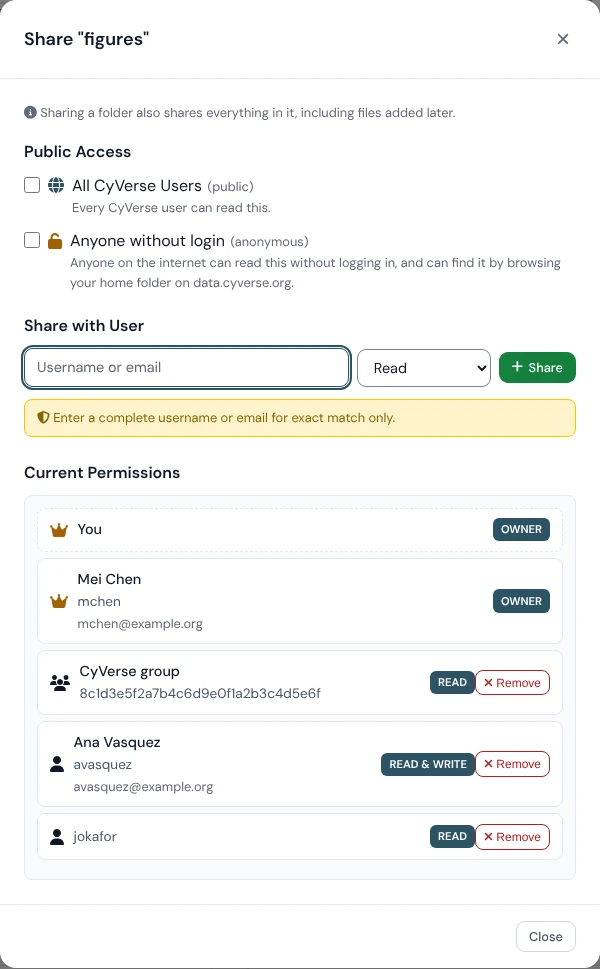
You should see: the share dialog, with Public Access, Share with User, and Current Permissions, which lists only you and says Not shared with anyone else.
-
Leave the boxes for All CyVerse Users (public) and Anyone without login (anonymous) unticked.
You should see: no change. Those two options open the folder to everyone, which is not what this tutorial is for.
-
Under Share with User, type your collaborator's complete CyVerse username.
You should see: under the box, a line marked Match that shows the email address of that account. The portal needs the whole username or email address; part of one is not enough.
-
Leave the access level at Read, then click Share.
You should see: Updating access… for up to half a minute, then your collaborator listed under Current Permissions, with Read.
-
Close the dialog and look at the folder header.
You should see: Shared · 1 where it said Private.
Check it worked
Ask your collaborator to sign in to the portal, open Data Browser, and click User Shared. It lists a folder for each of many CyVerse users, 25 to a page. They find the folder named with your username, clicking Next if needed, and open it. They should see your shared folder and nothing else of yours. Inside it the header says Read only, and there is no Upload, New Folder, or Share.
If it didn't
There is no Share button in the folder header. The folder is not yours: Share appears only on folders you own. Check that the header says Owner. If you are in Community, Shared, or someone else's folder, go back to My Files.
Next
- Sharing a folder shares everything in it, including files you add later. To take access away, open the dialog again and click Remove beside the person's name.
- Add metadata to a file or folder, so that the person you share with knows what they are looking at.
- Reference: Managing data, "Share data", which also covers the other access levels and sharing several items at once. The dialog names them Read & Write and Full Control.
Not yet validated by a person. Drafted with AI assistance on 2026-11-12 from the MESA documentation and followed once on the live portal on 2026-11-13.
Machine-readable versions of this page: Markdown twin · raw source on GitHub · llms.txt · llms-full.txt (whole site). See For AI agents.